
In order to prepare for MAP testing, it is important that you or your child conduct a pre-flight check of the device on which he or she will be testing. In order to conduct the pre-flight, you must:
- Launch Google Chrome.
- Visit test.mapnwea.org.
- Click “Try the Practice Test.”
- Login: the Practice Test username and password are both grow.
- Select a value for each of the drop-downs (which you choose doesn’t really matter), then press the blue arrow button.
- Once the first question appears on-screen, you may click the Exit Test button in the top-right corner. Of course, you may also continue to take the Practice Test to see what the MAP is like.
If you get the Practice Test to launch, then congratulations! You have successfully completed the pre-flight.
What could go wrong?
Hopefully, your pre-flight goes smoothly. If it doesn’t, here are the potential reasons why and what you can do about it:
You must be using Google Chrome and it must be up-to-date.
The MAP is optimized to run in Google Chrome so, if you do not normally use Chrome, you will have to download and install it. If it is already installed, please check that it is the latest version, following the instructions here.
Your computer’s operating system must be recent.
You can use a Mac, Windows, a Chromebook or an iPad, but the MAP expects the following:
- Windows: Windows 7, 8.1 or 10
- Mac: MacOS vOS v10.12 or higher
- iPad: iOS 11, 12 or iPad OS 13 (Testing on iPad requires the free NWEA App which you can get from the App Store. (Note that you can not take the MAP on an iPhone or Android.)
- Chromebook: Chrome OS 71 or higher
If your computer’s OS is out-of-date, upgrading is a good idea for several reasons. Please note that OS upgrades can take a long time; do not wait until testing time to do this.
The Pop-Up Problem
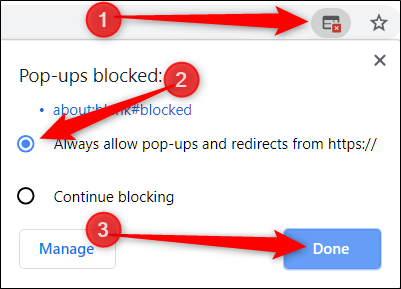
The MAP runs in a special pop-up window and, since pop-ups are sometimes used by advertisers, many web browsers block them. If your computer does, you will see a message that says, “Oops! Where is my testing window?”
The fix is simple:
- Look at the right end of the Omnibox (that is what Chrome calls the place you type in the “www.website.com”). There should be a small, square icon with a red-x.
- Click that icon and, in the drop down, choose the first option (“Always allow”) and then click the blue button.
- Reload the MAP website (test.mapnwea.org).
Workstation Readiness Check
This one is, unfortunately, a little complex.
The MAP assumes that your computer’s monitor is set to display a resolution of at least 1024 x 768. You can set this in your computer’s display preferences but, if you don’t know how, this is something I can help with in the Tech Support Zoom Room. If you're willing, here are some things you can try on your own:
- On a Chromebook, reset the screen resolution with the keyboard shortcut Ctrl + Shift + 0 (zero), then close and relaunch the MAP window.
- On Windows and Mac, visit Display Preferences and set your resolution to 1024 x 768
I know this was overwhelming and I applaud you for reading all the way to the end. Remember that the MAP is untimed; it’s OK if we have to take some time to get things right; your child will still get valid results. And, once the MAP runs correctly, you’re set for all of the different MAP assessments.