
In classrooms with Windows computers for teacher use, you have four options for how your desktop screen and wall-screen interact. To choose between the options, press the Windows Logo Key and P at the same time to bring up the on-screen PROJECT menu:
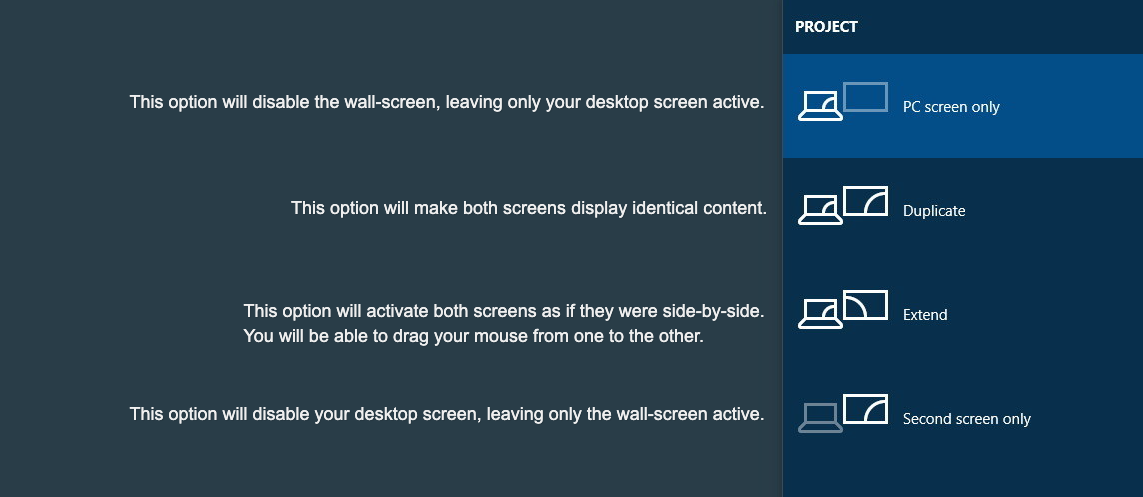
- PC screen only: this option will disable the wall-screen, leaving only your desktop screen active. Use this option to eliminate on-screen distractions. If you arrive in a classroom and the wall-screen is not working, this setting is probably the reason why.
- Duplicate: This option will make both screens display identical content. Using this option allows you to "drive" from your desk while students watch on the wall-screen.
- Extend: this option will activate both screens and arrange them side-by-side; you will be able to drag your mouse (and windows) from one to the other. Use this option to show your students one thing while you see another on your screen; for example, you could play a video or display directions on the wall-screen while working in a document or your gradebook on your desktop screen.
- Second screen only: this option will disable your desktop screen, leaving only the wall-screen active. It is the opposite of the "PC screen only" setting.