Our Newline touch screens include a Screen Lock feature which can be enabled if you want to leave the display on but not allow touch input. When enabled, everything looks the same but, nothing happens when the screen is touched, and a padlock icon appears in the top-right corner.
Some students have discovered how to enable this feature so it's important faculty knows how to unlock the screen:
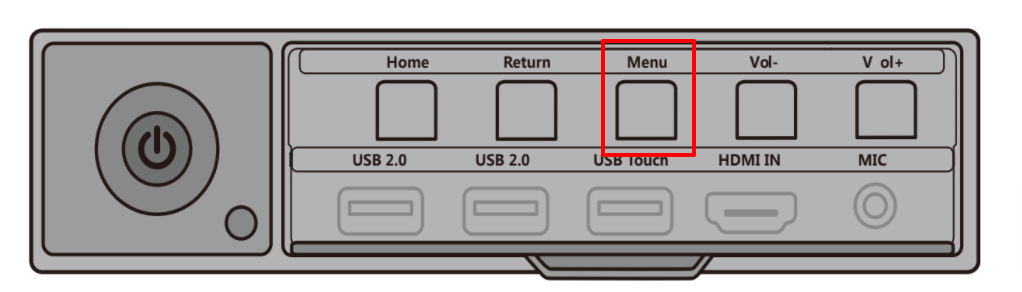
- The front control panel of the Newline screens (behind a little door) has five buttons; the center button is labeled Menu.
- Pressing this button for more than two seconds enables the Screen Lock, and pressing it again for more than two seconds will disable it.