
Your smartboard / computer can switch display modes between "Mirror" and "Extended". "Mirror" mode will duplicate both displays, so what is shown on the desk monitor will also display on the Smartboard. "Extended" mode will allow both displays to work independent of each other, allowing you to have one thing up on the smartboard and another on the desk monitor, allowing windows to be dragged between both.
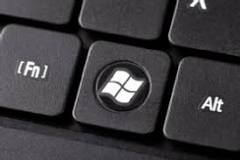
The keyboard shortcut that will allow you to switch between both screen modes is "Windows Key + Ctrl + F4". Here is a picture of the "Windows" key if you are wondering:
The above is method is default behavior, but if you just prefer to use the classic "Ctrl +F4" keyboard combination without the "Windows" key, adjust the following setting on your computer:
1. Click the system time in the bottom-left hand corner of the screen, then click the gear (settings) icon
2. Click "Device", then "Keyboard and inputs"
3. enable the "Use function keys as top row keys" setting
Note that the setting above is both a device and user-specific setting. This means that any new computer you use, you will have to re-enable this setting to use the simplified/classic version of this keyboard combination. Enabling this setting on your own user account will not affect other users' setting, so they will need to enable this too when they log in as themselves.
Our advice would be to just use the default "Windows Key + Ctrl + F4" default keyboard combination above, that way you don't have to worry about adjusting settings, as this should be default behavior if you haven't already adjusted this. Also note that you cannot use both settings at the same time.